How Often Should You Rotate DKIM Keys?
DKIM key rotation improves security but requires planning. Learn rotation schedules, how to rotate safely, and when it matters.
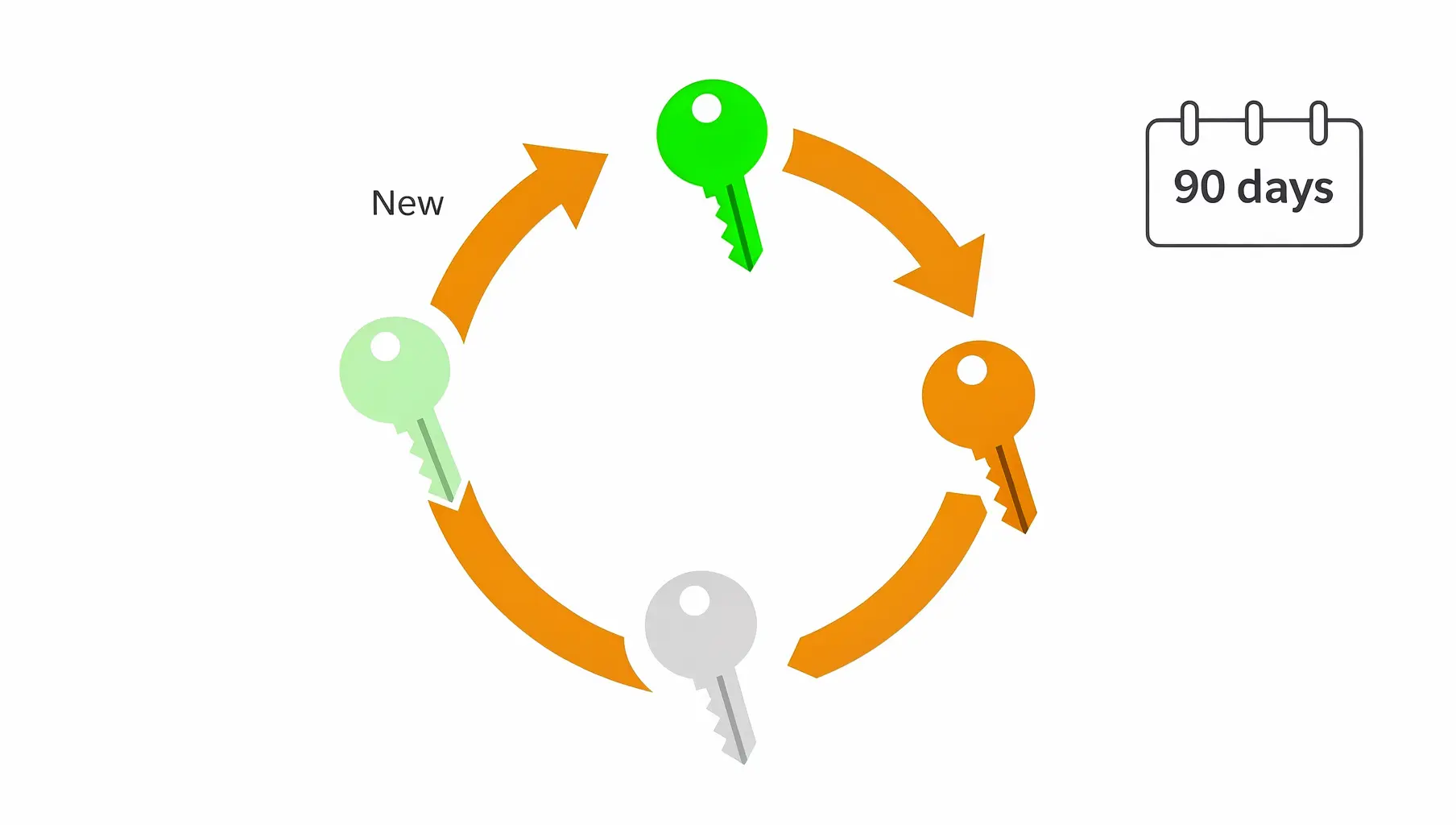
Rotate DKIM keys every 6-12 months for standard security, or quarterly for high-security environments. The exact frequency matters less than having a reliable process. A key you can rotate smoothly every year is better than a quarterly rotation that breaks your email.
DKIM key rotation is one of those security practices that everyone agrees is good but few organizations actually do. If you’re still setting up DKIM initially, see our common DKIM mistakes to avoid. Here’s how to think about rotation and how to do it right.
Why Rotate DKIM Keys?
Limiting Exposure Window
If your private key is compromised, an attacker can sign emails as your domain. Rotation limits how long a stolen key remains useful.
- Key stolen in January
- You rotate in July
- Attacker can only use the key for 6 months maximum
Without rotation, a compromised key works forever (or until you discover the breach).
Cryptographic Hygiene
Longer keys in use means more signed messages an attacker could analyze. While breaking DKIM through cryptanalysis is extremely difficult with proper key sizes, rotation is a defense-in-depth measure.
Compliance Requirements
Some security frameworks and audits require key rotation schedules. Having a documented rotation process satisfies these requirements.
Recommended Rotation Schedules
| Environment | Rotation Frequency | Reasoning |
|---|---|---|
| Standard business | Every 12 months | Balances security and operational overhead |
| Security-conscious | Every 6 months | Reduces exposure window |
| High-security/regulated | Every 3 months | Maximum protection, requires automation |
| Low-resource/simple setup | Every 12-24 months | Better than never rotating |
The honest truth: Most organizations never rotate DKIM keys and haven’t had problems. But “we haven’t been caught yet” isn’t a security strategy.
The Rotation Process
Step 1: Generate New Key with New Selector
DKIM uses selectors to identify which key signed a message. Create a new selector for your new key:
- Current:
selector1._domainkey.company.com - New:
selector2._domainkey.company.com
Generate the new key pair through your email provider or manually if self-hosting.
Step 2: Publish New Key in DNS
Add the new DKIM record to DNS:
selector2._domainkey.company.com TXT "v=DKIM1; k=rsa; p=MIIBIjANBgkq..."Wait for DNS propagation (usually a few hours, up to 48).
Step 3: Verify New Key Works
Before switching, verify the new key is accessible:
dig txt selector2._domainkey.company.comSome providers offer test modes—use them.
Step 4: Switch Signing to New Selector
Configure your email system to sign with the new selector. How you do this depends on your provider:
- Google Workspace: Generate new key in admin console
- Microsoft 365: Rotate through Defender portal
- ESPs: Usually done through their dashboard
- Self-hosted: Update your mail server configuration
Step 5: Transition Period
Keep both keys active for 1-2 weeks. This covers:
- Emails in transit signed with old key
- Cached DNS records pointing to old key
- Any stragglers from delayed delivery
Step 6: Remove Old Key
After the transition period, remove the old DKIM record from DNS. Don’t rush this—if anything’s still using the old key, you’ll see DKIM failures in DMARC reports.
Step 7: Decommission Old Private Key
Securely delete the old private key. It should no longer exist anywhere.
Provider-Specific Notes
Google Workspace
Google rotates automatically if you enable it. See our Google Workspace DKIM setup guide for detailed steps. Otherwise:
- Admin Console → Apps → Google Workspace → Gmail → Authenticate email
- Generate new record
- Add to DNS
- Start authenticating
Microsoft 365
For full setup details, see our Microsoft 365 DKIM guide.
- Microsoft Defender → Email & collaboration → Policies → DKIM
- Rotate keys for your domain
- Update DNS with new records
SendGrid / Mailchimp / ESPs
Most ESPs manage DKIM keys for you and may rotate them automatically. We have platform-specific guides for SendGrid, Mailchimp, and HubSpot. Check their documentation for:
- Whether they auto-rotate
- How to trigger manual rotation
- What DNS updates you need to make
Key Size Matters
When rotating, consider upgrading key size:
| Key Size | Status |
|---|---|
| 1024-bit | Minimum, becoming outdated |
| 2048-bit | Recommended standard |
| 4096-bit | Maximum security, may hit DNS limits |
If you’re on 1024-bit keys, use rotation as an opportunity to upgrade to 2048-bit.
Note: Keys larger than 2048 bits may exceed DNS TXT record limits and require splitting.
Automation Is Key
Manual rotation is:
- Easy to forget
- Error-prone
- Time-consuming
Automate what you can:
- Scheduled reminders for rotation dates
- Scripts to generate new keys
- Automated DNS updates if your provider supports it
- Monitoring to verify new keys work
For organizations with many domains, manual rotation doesn’t scale.
What Can Go Wrong
Mistake 1: Removing Old Key Too Soon
Emails signed with the old key are still in transit. If you remove the key before they’re delivered, DKIM fails.
Fix: Keep old key active for 1-2 weeks after switching.
Mistake 2: DNS Propagation Issues
You switch signing before the new key is visible everywhere.
Fix: Verify propagation from multiple locations before switching.
Mistake 3: Forgetting to Update All Senders
You rotate the key for your main email but forget about:
- Marketing platform
- Transactional email service
- CRM that sends email
Fix: Document all systems that sign email for your domain. Rotate all of them. See our third-party senders DMARC guide for managing multiple sending sources.
Mistake 4: Not Testing
You assume the new key works without verification.
Fix: Send test emails and verify DKIM passes before going live. Use our DKIM Checker to validate your new key is correctly published.
Do I Really Need to Rotate?
If you’re asking whether rotation is mandatory—no, it’s not. Many domains run for years without rotating DKIM keys.
But consider:
- Keys don’t expire on their own
- Compromise might not be detected
- Rotation proves you can rotate (important for incident response)
- Some compliance frameworks require it
The question isn’t whether you’ll ever need to rotate. It’s whether you’ll be ready when you do.
A Practical Approach
If you’re starting from zero:
- First year: Get DKIM working. Don’t worry about rotation yet.
- Year two: Rotate once to prove you can. Document the process.
- Ongoing: Annual rotation with documented procedure.
For most organizations, annual rotation with a solid process beats quarterly rotation that’s chaotic and error-prone.
Monitoring After Rotation
After rotating, watch your DMARC reports for:
- DKIM failures from your own IPs (something didn’t update)
- Unexpected failures from third-party senders (forgot to rotate their key)
- Old selector still being used (configuration didn’t take effect)
Verkh tracks DKIM results across all your senders, making it easy to catch rotation problems early.
Verkh monitors your DKIM configuration and alerts you to failures after key rotation. Keep your authentication healthy at verkh.io.
Related Articles
March 2026
How to Set Up DMARC for Klaviyo
Step-by-step guide to configuring SPF, DKIM, and DMARC for Klaviyo email marketing. Includes DNS records and troubleshooting.

January 2026
How to Ensure Your Emails Are Authenticated and Reach the Inbox
A practical guide to setting up SPF, DKIM, and DMARC so your emails actually get delivered. No fluff, just the steps that matter.

January 2026
5 Key Benefits of Adopting an Email Authentication Platform Today
Why SPF, DKIM, and DMARC matter for security, deliverability, and brand protection. A practical guide for businesses of all sizes.
Ready to implement this?
Verkh helps you monitor DMARC, identify issues, and reach enforcement. Start free.
Start Free