Third-Party Senders and DMARC: The Complete Guide
ESPs, CRMs, and marketing platforms send as your domain. Learn how to configure DMARC for third-party senders properly.
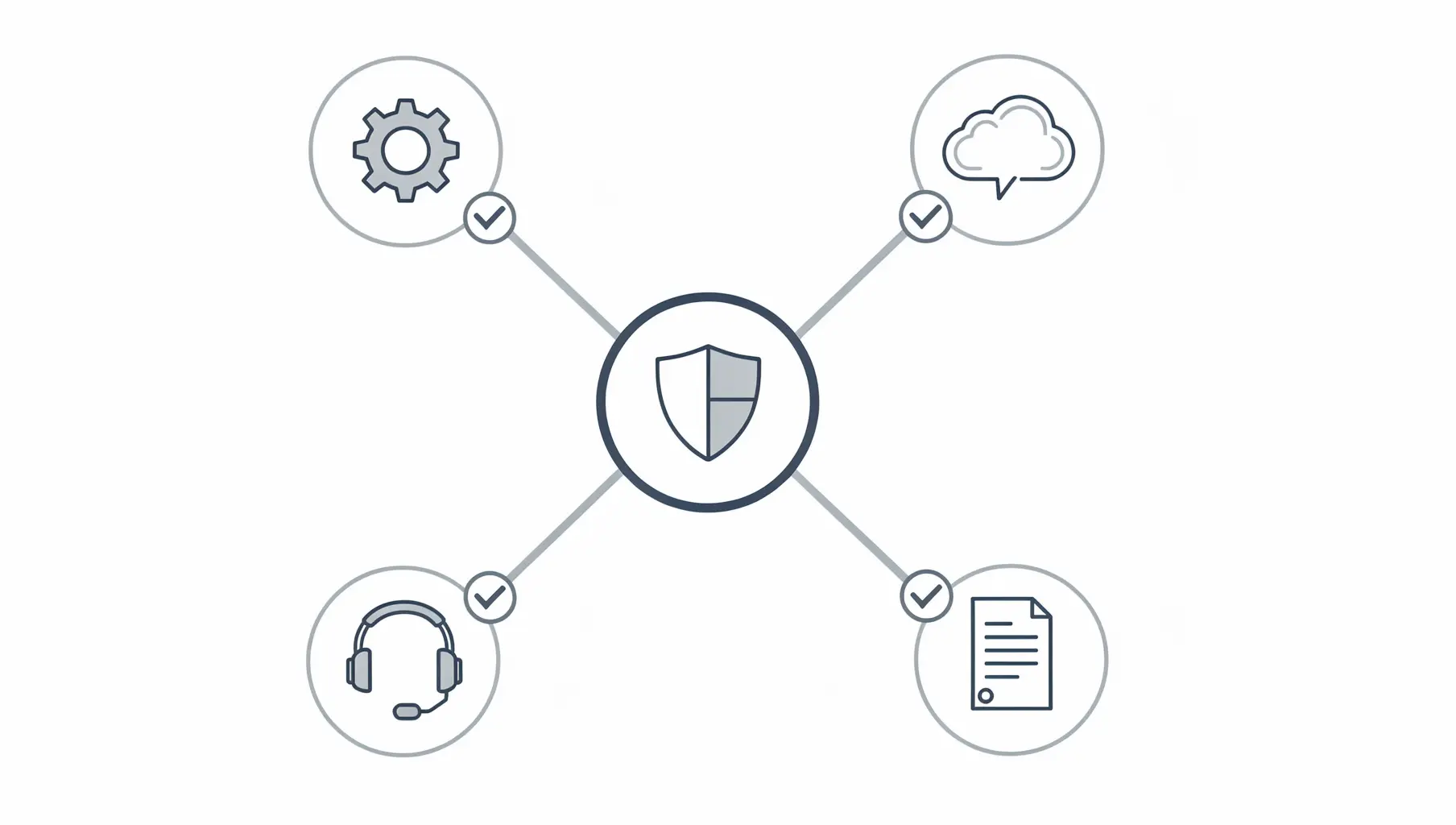
Third-party senders are the main reason organizations get stuck between DMARC monitoring and enforcement. Every ESP, CRM, marketing platform, and transactional email service that sends as your domain needs proper SPF and DKIM configuration. Miss one, and your path to p=reject stalls.
This guide covers how to identify your third-party senders, configure authentication for each, and handle the providers that make it difficult.
Why Third-Party Senders Are Complicated
When Mailchimp sends your newsletter, the email says From: [email protected]. But recipients’ mail servers see:
- From header:
[email protected](your domain) - Envelope From:
[email protected](Mailchimp’s domain) - DKIM signature: Could be
yourcompany.comormailchimp.com, depending on your setup
The mismatch creates authentication challenges:
SPF problem: Mailchimp’s servers aren’t in your SPF record by default. Even if you add include:servers.mcsv.net, the envelope sender is mailchimp.com, not yourcompany.com. SPF might pass for Mailchimp’s domain, but it doesn’t align with your From address.
DKIM opportunity: Mailchimp can sign emails with your domain’s DKIM key if you configure it. This is called “custom authentication” or “sender authentication” depending on the provider.
DMARC result: You need either SPF or DKIM to pass and align. With third parties, DKIM alignment is usually your only path.
Step 1: Identify All Third-Party Senders
Before you can fix authentication, you need a complete list of who sends as your domain.
Check your DMARC reports: Reports show every IP address that sent email claiming to be from your domain. Unknown IPs often belong to third-party services you’ve forgotten about.
Audit your organization: Ask each team what email tools they use:
- Marketing: email platforms, webinar tools
- Sales: CRM, outreach tools
- Support: ticketing systems
- Product: transactional email services
- IT: monitoring alerts, system notifications
- HR: recruiting platforms, benefits providers
Common third-party senders:
| Category | Examples |
|---|---|
| Marketing | Mailchimp, Klaviyo, HubSpot, Constant Contact |
| Transactional | SendGrid, Postmark, Amazon SES, Mailgun |
| CRM | Salesforce, HubSpot, Zoho |
| Support | Zendesk, Freshdesk, Intercom |
| Other | Calendly, DocuSign, Stripe, Shopify |
Verkh automatically identifies known providers in your DMARC reports, so you can see which services need configuration.
Step 2: Configure SPF for Each Sender
Add each sender’s SPF include to your record:
v=spf1 include:_spf.google.com include:sendgrid.net include:servers.mcsv.net -allFinding the right include: Each provider documents their SPF include. Search for “[provider] SPF record” or check their documentation. Common includes:
| Provider | SPF Include |
|---|---|
| Google Workspace | include:_spf.google.com |
| Microsoft 365 | include:spf.protection.outlook.com |
| SendGrid | include:sendgrid.net |
| Mailchimp | include:servers.mcsv.net |
| Amazon SES | include:amazonses.com |
| Postmark | include:spf.mtasv.net |
Watch the lookup limit:
Each include: adds DNS lookups. You have a maximum of 10. See our SPF 10 DNS Lookup Limit guide if you’re running out of room.
SPF alignment caveat: Adding SPF includes helps email pass SPF, but it may not help DMARC. If the third party uses their own domain in the envelope sender (most do), SPF won’t align with your From address. You still need DKIM.
Step 3: Configure DKIM for Each Sender
This is the critical step. DKIM is how third-party email passes DMARC.
How it works:
- You generate a DKIM key pair (or the provider generates it)
- You publish the public key in your DNS
- The provider signs outgoing email with the private key
- Recipients verify the signature against your DNS record
The process varies by provider:
Mailchimp
- Go to Account → Domains
- Click Authenticate for your domain
- Mailchimp provides CNAME records
- Add these records to your DNS
- Verify in Mailchimp
SendGrid
- Go to Settings → Sender Authentication → Domain Authentication
- Enter your domain
- SendGrid provides CNAME records
- Add records to your DNS
- Verify in SendGrid
HubSpot
- Go to Settings → Website → Domains
- Select Email Sending Domains
- Add your domain
- HubSpot provides DNS records
- Add and verify
Other Providers
The pattern is similar:
- Find authentication or domain settings
- Add your sending domain
- Get DNS records from the provider
- Add records to your DNS
- Verify in the provider’s dashboard
What to look for:
- DKIM records (usually CNAME or TXT)
- Sometimes SPF (include statements)
- Sometimes DMARC alignment settings
Step 4: Verify Configuration
After adding DNS records:
Check DNS propagation: Wait a few hours, then verify records are visible globally.
Verify in the provider’s dashboard: Most providers have a “Verify” button that checks your DNS configuration.
Monitor DMARC reports: After configuration, check reports to confirm the provider is now passing authentication. You should see:
- SPF: pass (for the provider’s domain)
- DKIM: pass (for YOUR domain)
- DMARC: pass (via DKIM alignment)
Handling Difficult Providers
Some providers make authentication harder than others.
Providers That Don’t Support Custom DKIM
Some older or smaller services don’t offer custom DKIM. Your options:
- Accept the failure: If it’s low-volume, you might tolerate some failures.
- Route through a service that does: Send via SendGrid or another authenticated path.
- Pressure the vendor: Tell them DMARC compliance is a requirement.
- Find an alternative: Switch to a provider that supports proper authentication.
Providers With Complicated Setup
Some enterprise tools (Salesforce, certain ERPs) have complex authentication setup. Document the process, involve IT if needed, and don’t give up. Authentication is possible; it just takes more effort.
Providers That Change IPs Frequently
If you’re relying on IP-based authentication (not recommended), providers with dynamic IPs break things constantly. Use DKIM instead—it doesn’t care what IP sends the email.
The Vendor Conversation
When a third-party sender won’t cooperate or has poor documentation:
-
Find the right support path: Authentication issues often need technical support, not billing or account management.
-
Be specific: “I need to configure DKIM so emails pass DMARC alignment. What DNS records do I add?”
-
Ask for documentation: Most providers have a help article you might not have found.
-
Escalate if needed: Mention that email deliverability is affected and DMARC compliance is required.
Verkh’s Apex shareable dashboards let you show vendors exactly what’s failing and why, which often gets faster resolution than vague support tickets.
Prioritizing Your Third-Party Senders
Not all senders are equally important. Prioritize by:
1. Volume: High-volume senders impact your pass rate more.
2. Business criticality: Transactional emails (order confirmations, password resets) matter more than marketing newsletters.
3. Ease of configuration: Quick wins first. Some providers take 10 minutes; others take weeks.
Suggested order:
- Your primary email (Google Workspace, Microsoft 365)
- Transactional email (SendGrid, Postmark)
- High-volume marketing (Mailchimp, Klaviyo)
- CRM and sales tools
- Everything else
Tracking Progress
For each third-party sender, track:
- Identified in DMARC reports
- SPF include added
- DKIM configured
- Verification confirmed
- DMARC alignment verified in reports
When all legitimate senders are authenticated and aligned, you’re ready to move toward DMARC enforcement.
Common Mistakes
Forgetting to verify: Adding DNS records isn’t enough. Complete the verification step in each provider’s dashboard.
Missing senders: One unauthenticated sender can block your path to p=reject. Audit thoroughly.
Relying only on SPF: SPF alignment rarely works with third parties. DKIM is essential.
Setting and forgetting: New tools get added, people set up email campaigns. Regularly review your DMARC reports for new senders.
For guidance on getting vendors to fix authentication issues, see our How to Get Your Vendors to Fix Email Authentication guide.
Verkh identifies all third-party senders in your DMARC reports and tracks which ones need configuration. See your sender inventory at verkh.io.
Related Articles
December 2025
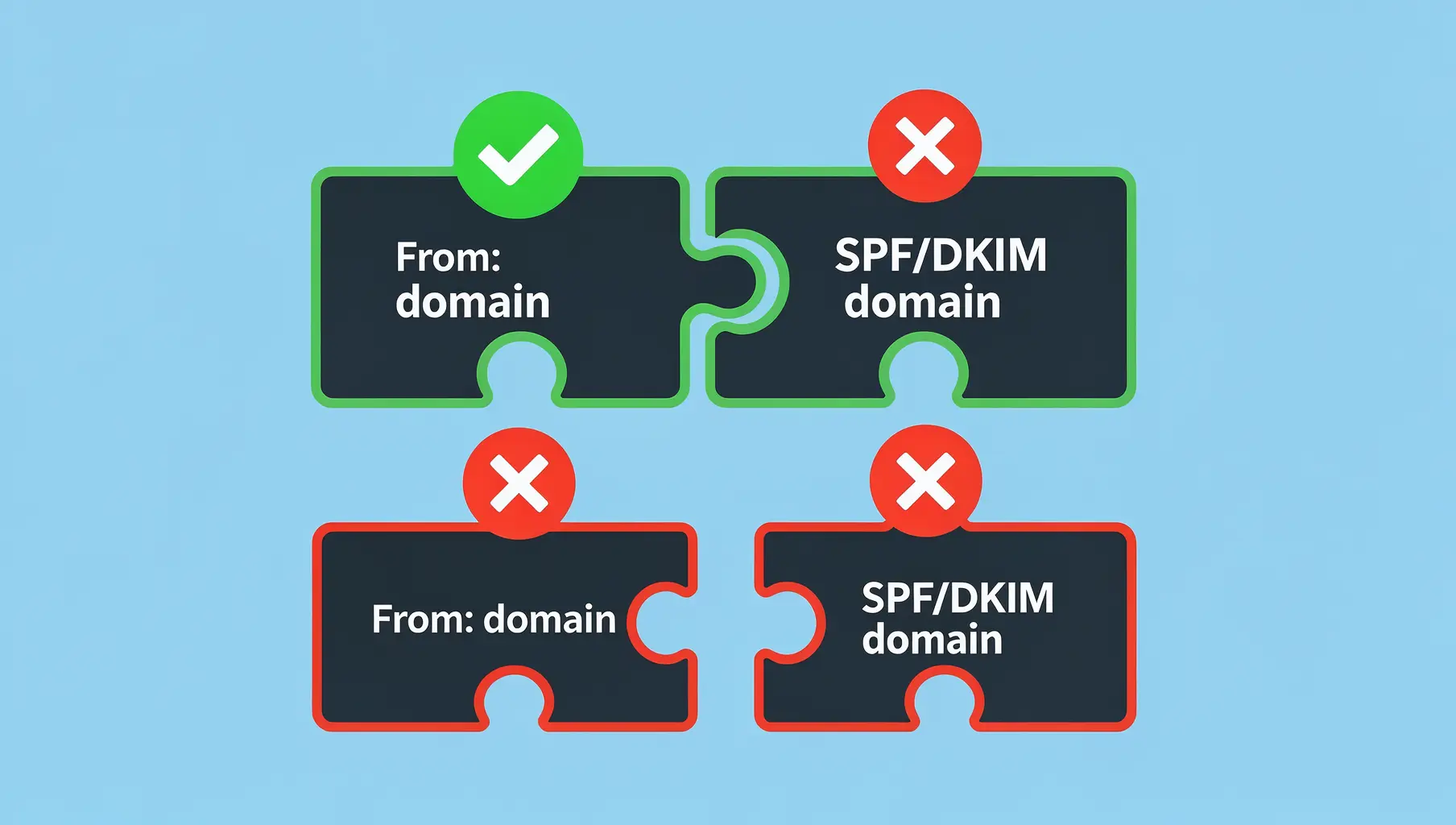
DMARC Alignment Explained Simply
DMARC alignment determines whether SPF and DKIM results count. Learn relaxed vs strict alignment and when each matters.
March 2026
How to Set Up DMARC for Klaviyo
Step-by-step guide to configuring SPF, DKIM, and DMARC for Klaviyo email marketing. Includes DNS records and troubleshooting.

January 2026
How to Ensure Your Emails Are Authenticated and Reach the Inbox
A practical guide to setting up SPF, DKIM, and DMARC so your emails actually get delivered. No fluff, just the steps that matter.
Ready to implement this?
Verkh helps you monitor DMARC, identify issues, and reach enforcement. Start free.
Start Free